How to Use Google Built-In on Your New Chevrolet
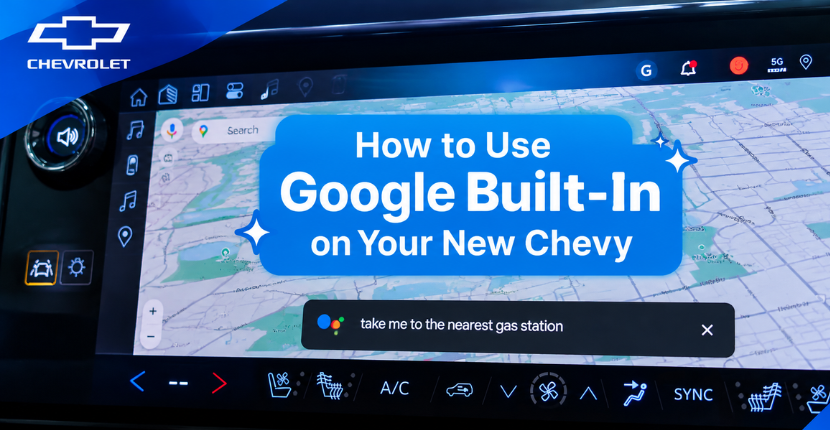
Many new Chevrolet vehicles offer Google built-in, bringing helpful Google features directly to your Chevy’s infotainment system.
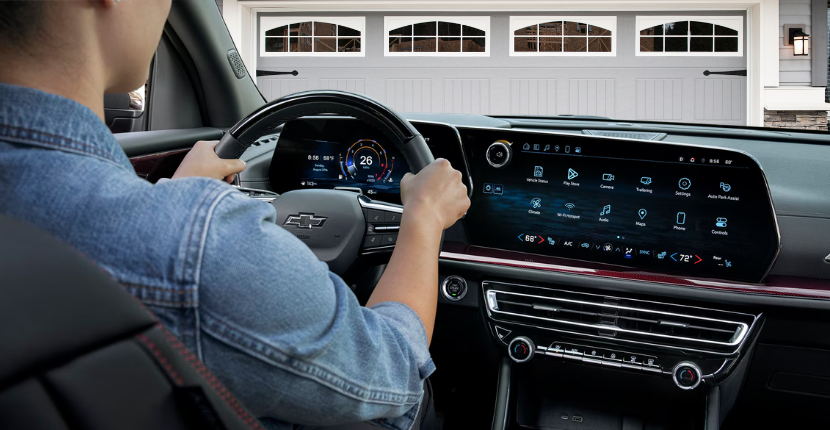
With Google built-in, you can access features such as Google Maps, Google Play, and Google Gemini or Google Assistant right from your vehicle’s center display. Depending on your vehicle and available features, you can get directions, use voice commands, download compatible apps, make calls and more.
If you’re wondering how to use Google built-in on your new Chevrolet, the team at Apple Chevrolet in Tinley Park, IL has put together this simple guide to help you get started.
Watch: How to Use Google Built-In in Your Chevy
Want to see Google built-in in action? Watch our video below for a quick demonstration of how to access and use Google features in a new Chevrolet.
What Is Google Built-In on a Chevrolet?
Google built-in integrates select Google apps and services directly into your Chevrolet’s infotainment system.
Unlike smartphone projection, Google built-in operates through your vehicle’s infotainment system. On compatible Chevrolet vehicles, available features can include:
- Google Maps for navigation
- Google Gemini or Google Assistant for hands-free voice assistance
- Google Play for downloading compatible apps
- Personalized destinations and preferences when signed into your Google Account
Features and availability can vary based on your Chevrolet model, infotainment system, software, location and active service plan.
How Do I Set Up Google Built-In in My Chevy?
When you first use a compatible Chevrolet’s infotainment system, a Setup Wizard can guide you through the process.
Your vehicle should be in Park while completing the initial setup.
The Setup Wizard can help you:
- Sign in to your GM Account.
- Sign in to your Google Account if desired.
- Pair your compatible smartphone using Bluetooth.
- Review and enable available Google services.
- Personalize your infotainment experience.
You can skip certain setup steps, but doing so may limit some of the system’s features.
Do I Need a Google Account to Use Google Built-In?
You do not need a Google Account to use every part of the infotainment system. However, signing into a Google Account provides a more personalized Google built-in experience.
For example, signing in can allow you to download compatible apps through Google Play and access saved locations, such as your home and work addresses, through Google Maps.
To sign in, select your profile name on the center display and choose Manage Profile. You may also be prompted to sign in when opening Google Maps or Google Play.
How Do I Use Google Maps in My Chevrolet?
On a compatible vehicle, open Google Maps directly from your Chevy’s center display.
You can search for a destination using the touchscreen or available voice assistance.
For example, you can:
- Search for an address
- Find restaurants and businesses
- Look for nearby gas stations
- View traffic information
- Choose from available routes
- Navigate to points of interest
On compatible Chevrolet EVs, Google Maps can also help locate charging stations along your route.
How Do I Use Voice Commands With Google Built-In?
Depending on your vehicle and software, your Chevrolet may use Google Gemini or Google Assistant for voice assistance.
There are several ways to activate the available Google voice assistant:
- Say “Hey Google” followed by your request
- Select the Google voice assistant icon on the center display
- Briefly press and release the Push-to-Talk button on your steering wheel
- Select the microphone or Gemini icon while using Google Maps
You can then make supported requests without having to navigate through menus on the touchscreen.
What Can I Ask Google to Do in My Chevy?
Available voice functions vary by vehicle and software, but Google built-in can make it easier to complete everyday tasks while keeping your hands on the wheel.
Depending on your vehicle and setup, you may be able to use voice assistance to:
- Get directions
- Call or message a contact
- Play music
- Find nearby businesses
- Set reminders
- Adjust certain vehicle settings, such as climate controls
- Ask questions
Select Chevrolet vehicles with Google built-in may also offer Google Gemini, which provides more conversational AI assistance.
How Do I Download Apps With Google Play in My Chevy?
If your Chevrolet supports Google built-in, you can use Google Play on the center display to browse and download compatible in-vehicle apps.
To get the most out of Google Play, sign into your Google Account and open the Google Play icon from the infotainment system.
Available apps can include options for music, podcasts, audiobooks and other in-vehicle entertainment. App availability varies, and some third-party services may require their own account or subscription.
Is Google Built-In the Same as Android Auto?
No. Google built-in and Android Auto are different.
Google built-in is integrated directly into the vehicle’s infotainment system, so supported Google apps and services can operate through the vehicle itself.
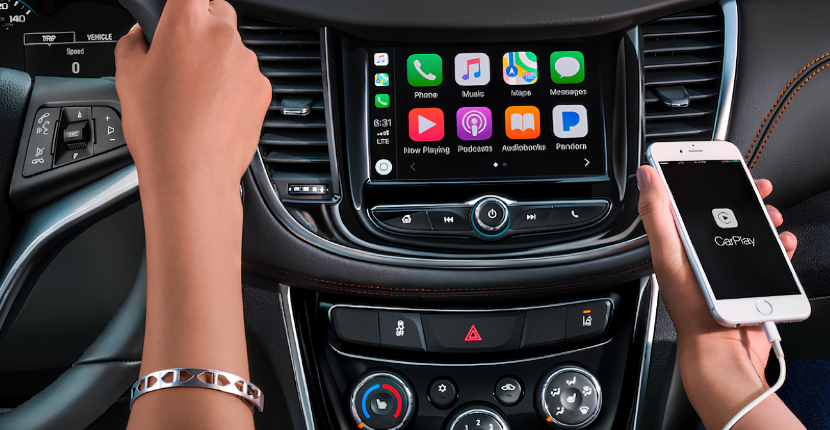
Android Auto connects a compatible Android smartphone to the vehicle’s infotainment system and displays supported phone apps and features on the vehicle’s screen.
Phone projection availability varies by Chevrolet model, so check the features included with your specific vehicle.
Does Google Built-In Require a Data or OnStar Plan?
Some Google built-in functionality requires an eligible service plan or trial.
The exact services and connectivity included with your Chevrolet can vary by model year, vehicle and plan. Some third-party apps may also require separate subscriptions or accounts.
If you’re unsure what’s included with your Chevrolet, check your vehicle’s current connected-services information or ask the Apple Chevrolet team for help understanding your vehicle’s features.
Frequently Asked Questions About Chevy Google Built-In
What is Google built-in on Chevy?
Google built-in brings select Google apps and services directly into the infotainment system of compatible Chevrolet vehicles. Features can include Google Maps, Google Play, and Google Gemini or Google Assistant.
Do I need my phone to use Google built-in?
Google built-in is integrated into the vehicle’s infotainment system and is not the same as projecting apps from your phone with Android Auto or Apple CarPlay. Certain functions, setup steps or connectivity features may still involve a compatible phone or account.
Can I use Google Maps in my Chevy?
If your Chevrolet is equipped with Google built-in compatibility, Google Maps can be accessed directly through the vehicle’s center display. Available connected features may require an eligible service plan.
Can I download apps to my Chevy?
On compatible vehicles with Google built-in, you can use Google Play to download supported apps directly to the infotainment system. Some apps may require a separate account or subscription.
Does every new Chevrolet have Google built-in?
No. Google built-in availability and functionality vary by vehicle, model, infotainment system and software. Check the equipment on the specific Chevrolet you’re considering to confirm which features are included.
Can I use Google built-in without a Google Account?
A Google Account is not required for every infotainment function, but signing in provides additional personalization and access to features such as downloading apps through Google Play.
Learn More About Chevy Technology at Apple Chevrolet
Today’s Chevy vehicles offer technology designed to make driving more connected and convenient, but knowing how to use those features is just as important as having them.
At Apple Chevrolet in Tinley Park, IL, our team can help you learn more about Google built-in and other technology available in your new Chevy.
Whether you’re researching Chevy technology, looking for a Tinley Park Chevy dealership, or searching online for Chevy dealers near me, visit Apple Chevrolet to explore our inventory and learn more about the features available in today’s Chevrolet cars, trucks and SUVs.
Check back for more Chevy how-to videos, technology guides and vehicle tips from Apple Chevrolet.