How to Use the Built-In Data Recorder with the Surround Camera Package

Did you know your Chevrolet may have a built-in data recorder that works much like a dash cam? If you drive a Chevrolet Traverse, Equinox, Tahoe or Suburban equipped with the Surround Vision Camera Package, you may be able to record your drives and review important footage directly from your vehicle.
In this Apple Chevrolet how-to video, Jeff walks you through how to use the camera controls and built-in data recorder, including how to view camera angles, record your drive and access saved footage.
Watch the video below to see how it works!
How to Access Your Chevrolet’s Surround Vision Cameras
Your Chevrolet’s Surround Vision Camera Package provides multiple camera views to help you see more of your vehicle’s surroundings.
To access the camera views:
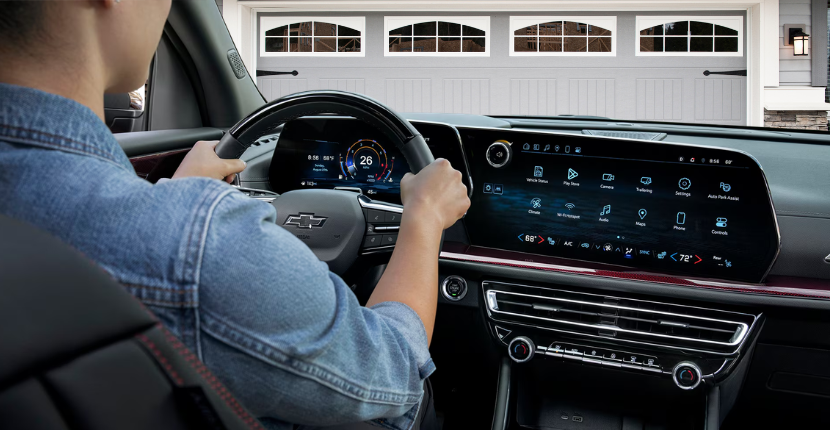
- Select Camera on your infotainment screen. From your vehicle’s radio display, tap the Camera icon.
- Explore the available camera views. You’ll see up to six different views of your vehicle, depending on your model and equipment.
- Return to the infotainment home screen. From there, select Recordings to access the data recorder and its available functions.
These camera views can be helpful when maneuvering in tight spaces, parking or checking your vehicle’s surroundings.
How to Use the Built-In Data Recorder in Your Chevy
When properly equipped, your Chevrolet’s built-in data recorder can capture video footage while you drive, providing a convenient way to review certain driving events.
Before using the recording feature, you’ll need a compatible USB drive with at least 64 MB of capacity and a minimum of 32 GB of available free space, as specified for this system. Check your owner’s manual for the exact USB requirements for your vehicle.
Follow these steps to get started:
- Open the Recordings menu. Navigate to the Recordings section on your vehicle’s infotainment screen.
- Connect your USB drive if required. Make sure the drive meets your vehicle’s storage requirements and is properly connected.
- Drive as usual. The system can record footage in a continuous loop, similar to a dash cam, when the feature is operating as designed.
- Review your recordings. After your drive, return to the Recordings menu to access available footage.
- View or export your footage. Depending on your vehicle’s system, you may be able to watch recordings on the infotainment screen or export compatible files for viewing on a phone or computer.
The recording system can help capture driving footage around events such as sudden stops or potential collisions. Recording behavior, event detection and available controls may vary by vehicle and configuration.
How Long Does the Chevrolet Data Recorder Record?
The system Jeff demonstrates uses loop recording, which can continuously record and overwrite older footage as new footage is captured. The recording window and saved-event behavior depend on your vehicle’s system settings and available storage.
This can be useful if you want to review footage after a drive or check what happened during a particular driving event.
Keep in mind that recording functionality and storage requirements vary by model year and equipment. Refer to your Chevrolet owner’s manual for the instructions specific to your vehicle.
Does Your Chevrolet Have an Interior Camera?
Some vehicles equipped with the applicable camera and recording system may also support interior recording features. As Jeff explains in the video, certain systems can capture interior footage when the vehicle is parked and locked if an eligible event occurs.
The exact behavior depends on the vehicle’s equipment, settings and recording system. Review your owner’s manual to understand when interior recording is available, what triggers it and how to access any saved footage.
Need Help with Your Chevrolet’s Technology?
At Apple Chevrolet, we’re here to help you get more out of your vehicle. Whether you drive a Chevrolet Equinox, Traverse, Tahoe, Suburban or another model, understanding your vehicle’s technology can help you make the most of its available features.
If you have questions about your Surround Vision Camera Package or built-in data recorder, our team is happy to help point you in the right direction.
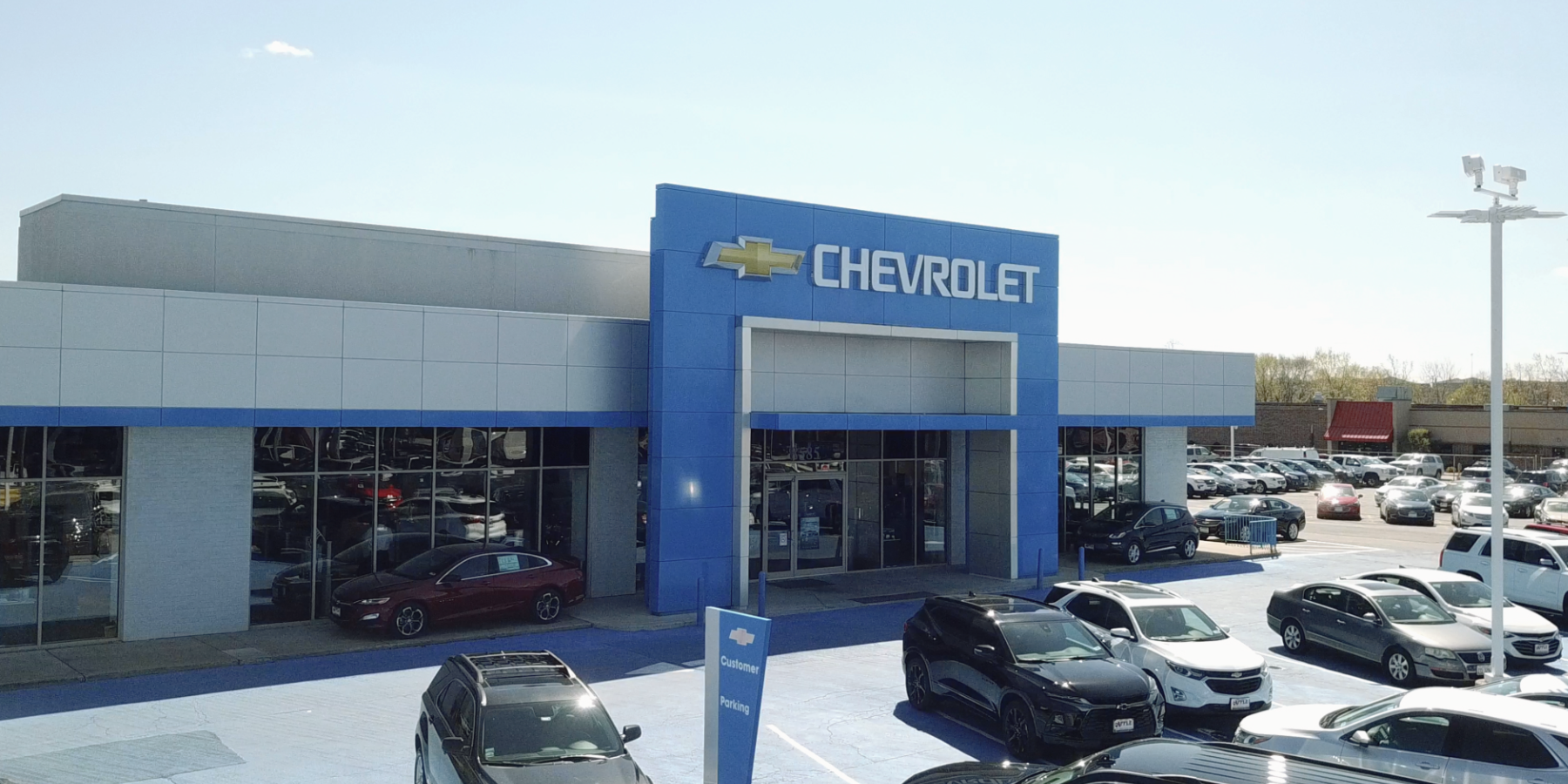
Visit Apple Chevrolet, your Tinley Park Chevy dealer, at 8585 W 159th Street in Tinley Park, IL, serving drivers from Orland Park, Frankfort, Mokena, Oak Lawn and throughout the surrounding Chicagoland area.
Contact Apple Chevrolet
- Sales: (708) 532-5476
- Service: (708) 342-4160
- Main Phone: (708) 429-3000
Have questions about your Chevy’s features? Contact Apple Chevrolet or visit us in Tinley Park for assistance.
Frequently Asked Questions
Which Chevrolet vehicles offer the Surround Vision Camera Package?
The Surround Vision Camera Package is available on select Chevrolet models and configurations. Availability on the Equinox, Traverse, Tahoe and Suburban depends on the model year, trim and installed equipment. Check your vehicle’s original equipment information or owner’s manual to confirm.
Do I need a USB drive to use the built-in data recorder?
A compatible USB drive may be required for recording and exporting footage. For the system demonstrated in this video, use a drive that meets the stated capacity and free-space requirements. Check your owner’s manual for your vehicle’s exact specifications.
Can I watch recorded footage on my phone?
Depending on your Chevrolet’s recording system, you may be able to export saved footage and view compatible files on a phone or computer. The available export process and file compatibility can vary.
Does the Chevrolet data recorder work like a dash cam?
The built-in data recorder can provide dash-cam-like functionality by capturing driving footage in a continuous loop when supported and enabled. Certain driving events may also be saved, depending on the system. It should not be considered a substitute for a dedicated dash cam without confirming its capabilities.
Can the interior camera record when my vehicle is parked?
Some equipped systems support interior recording when the vehicle is parked and locked, subject to the applicable equipment, settings and event triggers. Consult your owner’s manual for details about your specific Chevrolet.
Where can I get help learning how to use my Chevrolet’s camera system?
Apple Chevrolet in Tinley Park, Illinois, can help direct you to vehicle-specific information and resources for understanding your Chevrolet’s technology and available features.
Feature availability and operation vary by model year, trim and equipment. Always follow your owner’s manual and local laws regarding video recording and privacy. Never operate infotainment controls while driving.