How to Connect Apple CarPlay & Android Auto in Your Chevy | Step-by-Step
A Step-by-Step Guide from Apple Chevrolet
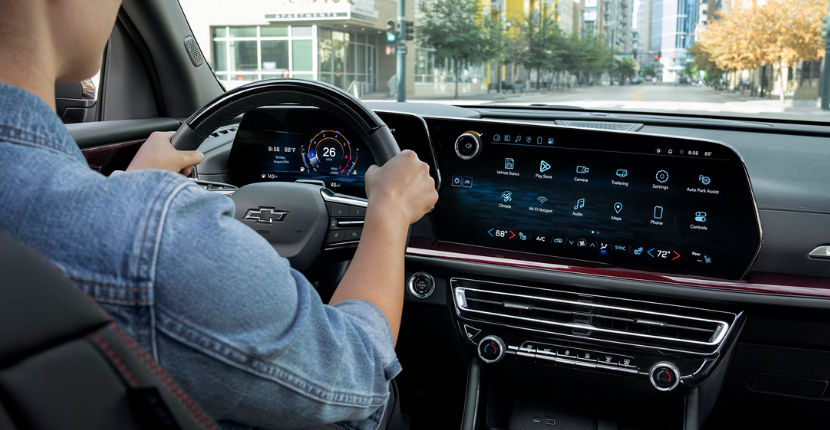
One of the first questions many new Chevrolet owners ask is, “How do I connect my phone to my vehicle?” Whether you’re using Apple CarPlay or Android Auto, connecting your smartphone allows you to access navigation, music, messages, and calls directly from your Chevrolet’s infotainment system.
At Apple Chevrolet, we want you to get the most out of your vehicle’s technology. That’s why we’ve created this simple step-by-step guide to help you connect your smartphone quickly and start enjoying a more convenient drive.
Watch Our Step-by-Step Video
Need a visual walkthrough?
Our team at Apple Chevrolet in Tinley Park demonstrates how to connect both Apple CarPlay®and Android Auto in a Chevrolet vehicle. Follow along with the video below, and you’ll be connected in just a few minutes.
▶ Watch the video below.
What Is Apple CarPlay?
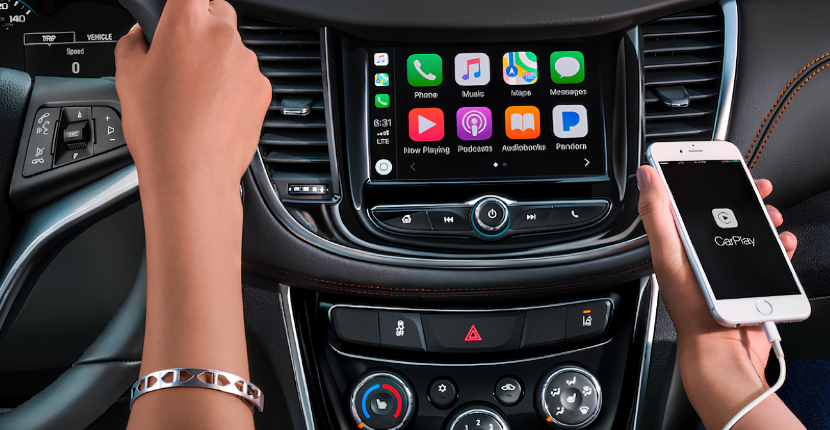
Apple CarPlay lets you connect your compatible iPhone to your Chevrolet’s infotainment system. Once connected, you can safely access many of your favorite apps using the touchscreen, steering wheel controls, or voice commands with Siri®.
With Apple CarPlay, you can:
- Get turn-by-turn directions with Apple Maps or Google Maps
- Make and receive phone calls
- Send and receive text messages using Siri
- Listen to music, podcasts, and audiobooks
- Access supported apps like Spotify, Audible, and more
What Is Android Auto?
Android Auto gives Android smartphone users many of the same convenient features while helping reduce distractions on the road.
With Android Auto, you can:
- Use Google Maps or Waze for navigation
- Make hands-free phone calls
- Send and receive text messages using Google Assistant
- Stream music and podcasts
- Access compatible apps directly through your vehicle’s display
How to Connect Apple CarPlay
Follow these simple steps:
- Start your Chevrolet and make sure it’s in Park.
- Turn on Bluetooth and Wi-Fi on your iPhone.
- Connect your iPhone using a compatible USB cable, or pair wirelessly if your Chevrolet supports wireless Apple CarPlay.
- When prompted on your phone, tap Allow to enable Apple CarPlay.
- Follow the prompts on your infotainment screen to complete the setup.
Once connected, your favorite compatible apps will appear on your vehicle’s display.
How to Connect Android Auto
Connecting an Android phone is just as easy.
- Start your Chevrolet.
- Enable Bluetooth and Wi-Fi on your Android device.
- Connect using a USB cable, or wirelessly if your Chevrolet supports wireless Android Auto.
- Accept the permissions requested on your phone.
- Complete the setup instructions displayed on your Chevrolet’s infotainment screen.
You’re now ready to enjoy hands-free access to navigation, music, calls, and messaging.
Tips for the Best Connection
If you’re having trouble connecting your phone, try these quick tips:
- Make sure your phone’s operating system is up to date.
- Confirm your vehicle supports Apple CarPlay or Android Auto.
- Use a high-quality USB cable if connecting with a wired connection.
- Restart your phone if it doesn’t connect immediately.
- Delete old Bluetooth pairings if you’ve connected multiple devices in the past.
Most connection issues can be resolved in just a few minutes.
Need Help? We’re Here for You
Technology should make driving easier, not more complicated. If you have questions about connecting your phone or using your Chevrolet’s infotainment system, our team is happy to help.
Whether you’re purchasing a new Chevrolet or already own one, we’ll gladly walk you through the setup process and answer any questions about your vehicle’s technology features.
Visit Apple Chevrolet in Tinley Park
If you’re shopping for a Tinley Park Chevy, stop by Apple Chevrolet to explore the latest Chevrolet models equipped with Apple CarPlay and Android Auto. Our knowledgeable team can demonstrate these features during your test drive and help you feel confident using your vehicle from day one.
Browse our inventory online or visit our Tinley Park Chevrolet showroom to experience Chevrolet technology for yourself.